
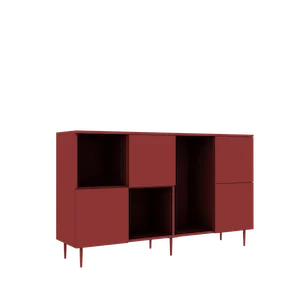
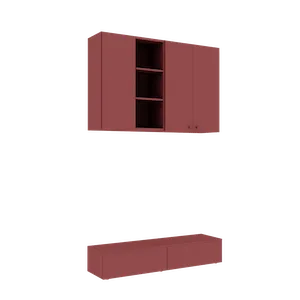
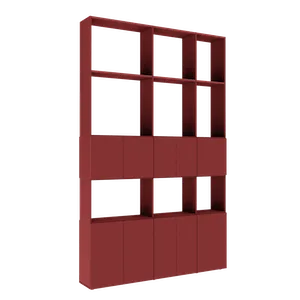
Visualize Your Room Before Buying: Téchne Room Planner
Discover the Téchne Room Planner — a free tool that lets you visualize custom furniture in your actual room, with exact dimensions, before purchasing.
Buying custom furniture is a significant investment. The wardrobe you configured will look exactly how you want — but will it fit in the room? Will it interfere with the door, window, or radiator? Will you be able to open its doors without hitting the opposite wall? These are questions many customers ask after the furniture has been delivered. With the Téchne Room Planner, you answer them before placing your order.
What Is the Téchne Room Planner?
The Room Planner is a spatial visualization tool integrated directly into technefurniture.com. It works in the browser, no installation needed and no account required — open the page and start building. In short, it allows you to:
- Draw your room with real dimensions (width, depth, height)
- Add wall elements: doors (single or double), windows (small or large)
- Add structural elements: support pillars and ceiling beams
- Add fixed installations: radiators, outlets, switches, AC units
- Place configured furniture or standard products directly into the scene
- Rotate, move, and adjust each piece — distance from wall, height from floor
- View everything in an interactive 3D scene or a top-down SVG plan view
It is essentially a mini design studio available for free, right in your browser.
Why Is It Unique in Romania?
Most furniture stores in Romania offer, at best, a catalog with images and a tape measure. Some major brands have configurators, but almost none allow you to place configured furniture into a replica of your actual room, with exact dimensions and obstacles (doors, windows, pillars) marked.
The Téchne Room Planner does exactly this. It is not a concept or a prototype — it is a live feature on technefurniture.com/room-planner, available to anyone, for free. Integration with our 3D configurator means that the furniture you place in the room is the exact furniture you will order — same dimensions, same shape, same price.
How It Works: Step by Step
Step 1 — Define Your Room
Open the Room Planner and you will see an empty space with default dimensions. Using the Room tab in the right side panel, enter your room's real dimensions: width, depth, and height, in centimeters. For example, a standard living room might be: 400 cm wide, 500 cm deep, 265 cm high.
The room resizes in real time on screen. Walls are identified by orientation (back, front, left, right) to make element placement straightforward.
Step 2 — Add Doors and Windows
From the same panel, add wall elements. You have access to:
- Standard door — single leaf, with opening indicator
- Double door — two leaves
- Small window — typical for bathrooms or kitchens
- Large window — living room or bedroom window
Each element can be placed on any wall. You adjust positions precisely: distance from the left corner of the wall, distance from the floor (for windows), width, and height. The system automatically displays the distance to the right corner as well, so you never need to calculate manually.
Step 3 — Add Structural Elements and Installations
Does your room have a support pillar in the middle? A ceiling beam on the back wall? A radiator under the window? All of these can be added to the Room Planner. Pillars have dimensions on three axes and can be placed anywhere via drag and drop. Beams attach to a wall and have configurable thickness, depth, and height.
Fixed installations — radiators, outlets, switches, and AC units — are placed on walls at the correct height. While they do not physically interact with furniture, they help you visualize where you cannot place a cabinet.
Step 4 — Place Your Furniture
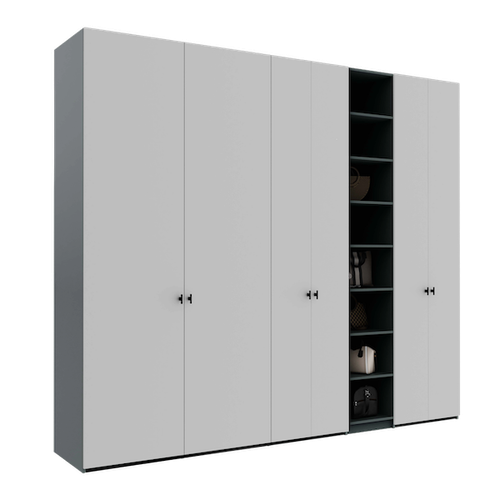
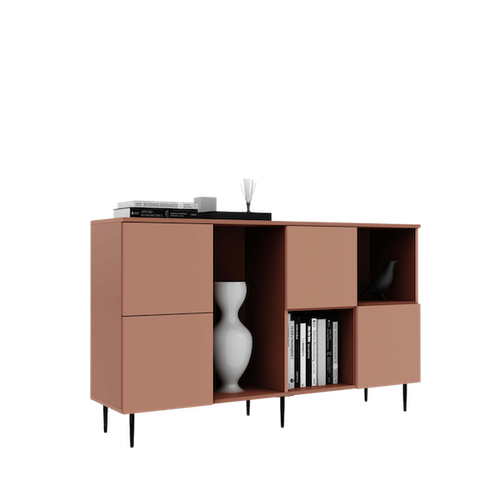
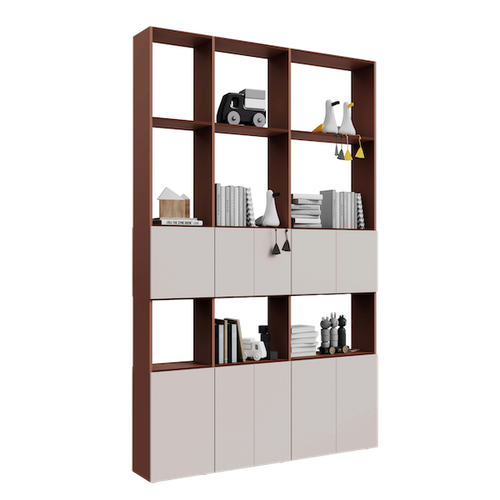
This is the main moment. From the Furniture tab, you have access to all furniture pieces you previously configured with the Téchne configurator. Each piece appears with its real dimensions and exact 3D model.
Drag a piece into the scene, place it on the desired wall, and adjust it:
- Rotate — turn the furniture on its vertical axis
- Distance from wall — move the piece inward (useful for baseboards or radiators)
- Height from floor — for wall-mounted units
- Position on wall — distance from the left corner of the wall
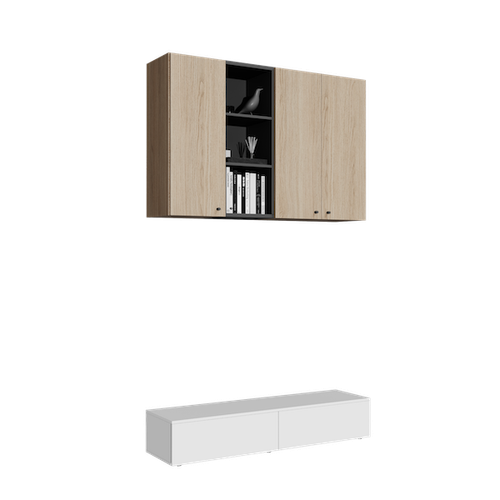
You can add multiple pieces — a wardrobe on the left wall, a TV sideboard on the back wall, a wall shelf above the sideboard. The Room Planner displays all of them in the same 3D scene, at real scale.
Step 5 — Review and Finalize
Activate the plan view (SVG) to see the room from above, like an architectural blueprint. Check:
- Distances between pieces and walls
- Clear space in front of cabinets (minimum 60-70 cm for door opening)
- Walking corridors
- Visibility of doors and windows
The side panel also shows statistics: the total price of furniture in the scene, the number of pieces, and their type. This gives you a complete picture — both spatial and financial — before ordering.
Concrete Benefits of Visualization
No Surprises on Delivery Day
The biggest benefit: you know in advance that everything fits. No more panic moments when the assembly team discovers the wardrobe does not fit through the door or blocks the window. You verified everything on screen, down to the millimeter.
Exact Dimensions, Not Approximations
The Room Planner works with centimeters, not eyeball estimates. When you set the room to 385 cm wide, the furniture is placed within those 385 cm — not "about 4 meters." This precision matters enormously with custom furniture, where every centimeter is calculated.
Correct Visual Composition
A 250 cm tall wardrobe next to an 80 cm sideboard — does it look good? With the Room Planner, you see real proportions and can decide whether to add a wall shelf between them or adjust the dimensions in the configurator.
Better Communication with Family
Instead of "I think the wardrobe should be on the other wall," you show concretely how both options look. You can rename each piece with a custom name (for example, "Andrei's Dressing" or "Living Bookcase") to make the composition easier to understand.
Start Now
The Téchne Room Planner is available for free at technefurniture.com/room-planner. Configure your furniture with the 3D configurator, then place it in your virtual room. It is the safest way to buy custom furniture, with zero surprises.