
Open All Doors and Drawers in the Configurator: Check the Interior Before You Order
One button opens every door, flap door and drawer in the Téchne 3D configurator. Here is what to check inside your furniture before you place the order.
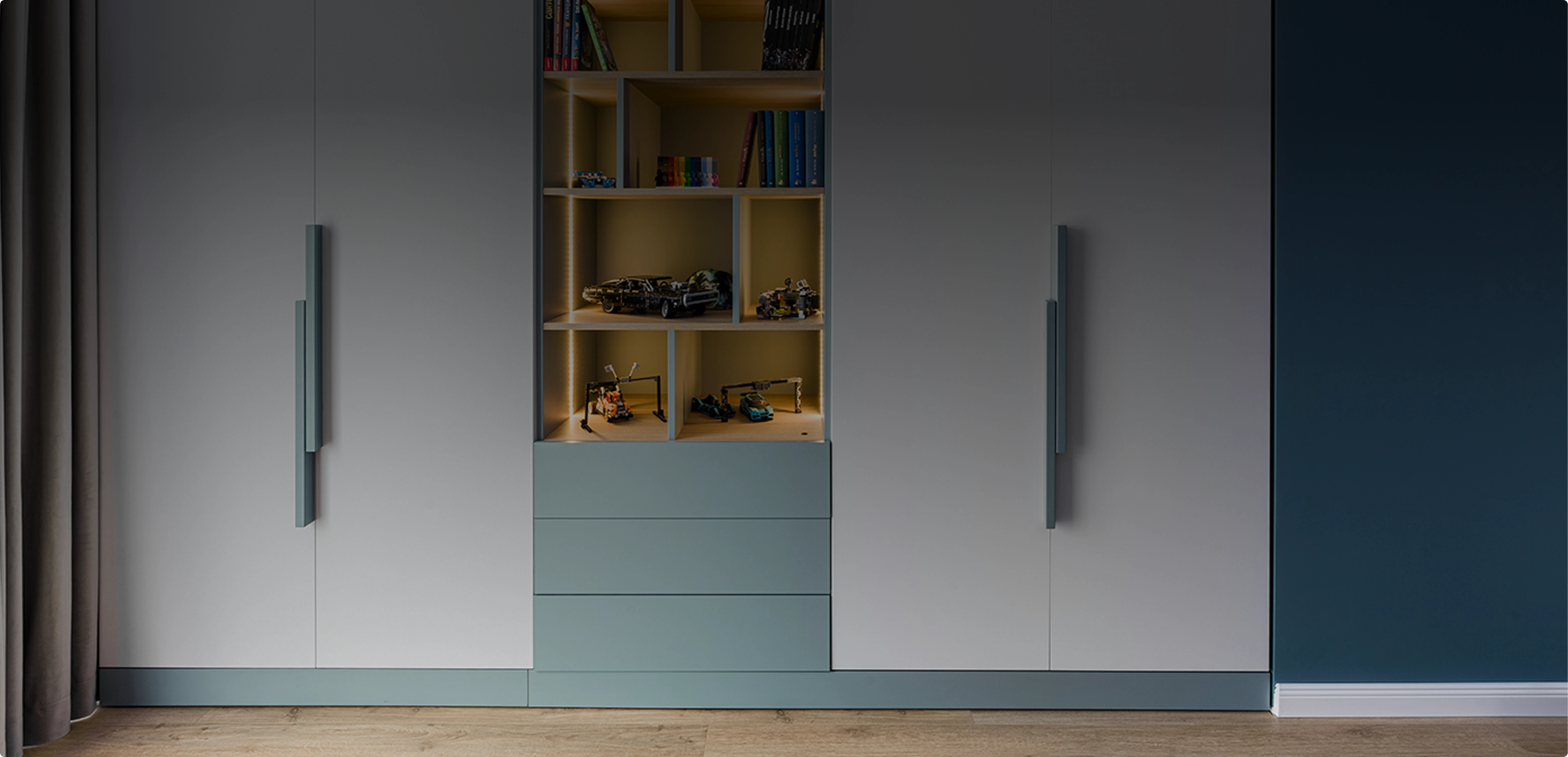
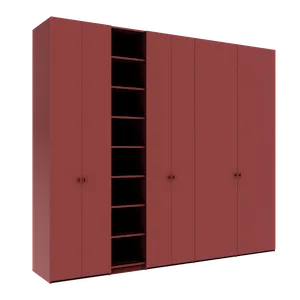
A wardrobe looks good with its doors closed — but you buy it for what is inside. Shelves, clothes rails, drawers behind the doors, a wardrobe lift or glass shelves only become visible once the fronts are open. Until now, in the Téchne configurator you could see the interior by hovering over a unit, one door at a time. Since late October 2026 there is also a dedicated button: “Open doors and drawers”, which opens everything in a single click.
Where to find the button
The button sits in the configurator's top bar, next to the Front and 360 views and before the AR button. Its icon is a half-open door. Hover over it and you will see “Open doors and drawers”; once pressed, the button turns black and the text changes to “Close doors and drawers”.
If you are in the Front view, the configurator switches automatically to 360 before opening the fronts. The reason is simple: seen strictly from the front, a wardrobe with open doors tells you very little — the doors hide the sides and the depth is hard to read. In perspective you see both the interior and how far the doors swing into the room.
What opens
The button opens everything that opens in real life:
- single and double doors, on the hinge side you chose;
- flap doors, whether they open upwards or downwards — you see exactly the direction you picked (more in the guide on flap doors opening up or down);
- drawers, which slide out of the unit just as they would at home.
What does not open: the fixed panel of a corner wardrobe, because it has no hinges in reality either. The configurator shows every front the way it will work in your home — nothing more.
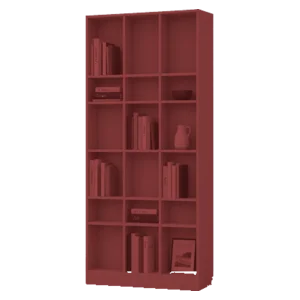
If your piece has no doors or drawers at all (an open bookcase, for example), the button stays grey and inactive: there is nothing to open, and the interior is visible anyway.
How long they stay open
Once the fronts are open you can rotate the view, zoom in and hover over the unit — doors and drawers stay open, so you can look calmly from any angle. They close on their own when you:
- press the button again;
- go back to the editor or switch to another section of the configurator;
- make any change to the piece (including undo or redo).
Closing on change is intentional: after you change a dimension, a material or an interior element, the piece is rebuilt in 3D, and you open the fronts again to see the new version, not an old one left on screen.
What is worth checking with the fronts open
The button is most useful right before adding the piece to your cart. A short list of things you only see with doors and drawers open:
1. Column layout
Check whether the rail height is enough for coats and long dresses, whether the shelves are spaced right for what you plan to store and whether you left room for boxes or suitcases at the top. This is when you notice that one column has too many shelves and another too few.
2. Drawers behind doors
Interior drawers in a wardrobe with doors get their own side walls on the hinge side, so the open door never blocks the drawer. With the fronts open you see exactly how this looks — the full explanation is in the article on interior drawers with their own walls.
3. Interior accessories
A wardrobe lift, a trouser holder, a jewellery drawer or an LED clothes rail make much more sense in context. See how high each one sits and whether it works with the rest of the column. For the lift, the dedicated guide is how to choose a wardrobe lift.
4. Glass shelves and interior finishes
If you chose clear or smoked glass shelves, only with the doors open do you see how they look together with the interior material and the back panel.
5. How much room the open doors take
Hinged doors need space in front of the wardrobe. With them open in 3D you get a sense of how far they reach into the room — especially useful in hallways or narrow bedrooms, where a bed or a room door may be close. To check against your real room size, use the Room Planner, where you place the piece between walls, doors and windows.
6. Drawers in dressers and low units
On a dresser with several rows of drawers, opening them all at once shows the height split at a glance: which drawers are deep, for bedding or sweaters, and which are shallower, for small items.
Button or hover: when to use each
Hover opening stays: move the mouse over a unit and its doors open wide, so you can quickly look into a single compartment. The button is for when you want to see the whole piece at once and rotate it without keeping the mouse over it. On phones and tablets, where there is no hover, the button is the easiest way to see the interior.
Step by step
- Open the wardrobe configurator (or the one for a dresser, wall unit or another piece) and build your piece: dimensions, columns, fronts, interior elements.
- Press the half-open door button in the top bar. If you were in Front, the configurator switches to 360 by itself.
- Rotate and zoom; check the columns, drawers and accessories one by one.
- Found something to change? Make the change — the fronts close automatically — then press the button again to see the result.
- When the interior looks right, add the piece to your cart. If you want to see it in your own room, the AR view is right next to the button.
Frequently asked questions
Does the button change my configuration or the price?
No. It is only a view: it opens and closes the fronts in 3D without changing the piece, the price or what gets manufactured.
Why did the doors close on their own?
Because you made a change, switched sections or went back to the editor. Press the button again after the change to see the updated piece.
Why is the button grey?
The piece has no doors or drawers that can open. Add fronts and the button becomes active.
Questions about what you see inside? Write to us on the contact page and we will help you organise your wardrobe.