
How to Rename and Organize Furniture Pieces in Your Cart
Learn how to rename furniture pieces in your cart for easy identification in the Room Planner, at checkout, in emails, and during assembly.
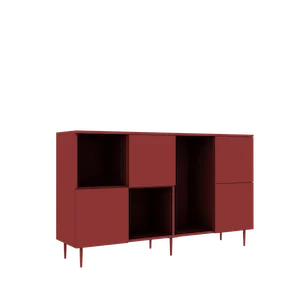
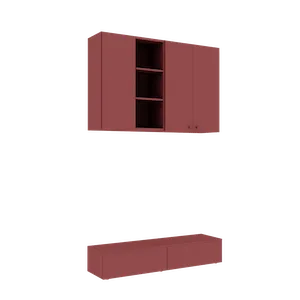
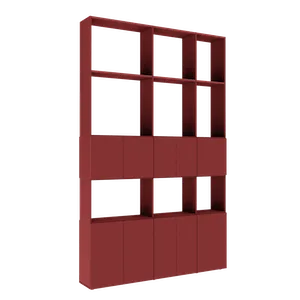
You have configured three different wardrobes — one for the bedroom, one for the hallway, and one for the kid’s room. You add all three to the cart and look at the list: “Wardrobe,” “Wardrobe,” “Wardrobe.” Which one was for the bedroom? And if you add a sideboard, things get even more confusing. The rename feature in the technefurniture.com cart solves exactly this problem — and the benefits extend far beyond the cart itself.
Why Custom Naming Matters
Custom furniture is, by definition, unique. Each piece has different dimensions, compartments, and finishes. But the system cannot guess which room each wardrobe is going into. The default names — “Wardrobe,” “Sideboard,” “Wall Unit” — are technically correct but useless when you have multiple similar pieces in the same order.
A custom name transforms a generic list into a clear inventory:
- “Wardrobe” becomes “Master Bedroom Dressing”
- “Wardrobe” becomes “Hallway Wardrobe”
- “Wardrobe” becomes “Alexia’s Room Wardrobe”
- “Sideboard” becomes “Living Room TV Sideboard”
The difference is immediate: you know exactly what each piece is, without opening the configuration details.
How to Rename a Furniture Piece
The process is simple and quick — you do not need to reconfigure anything:
- Open the shopping cart — either from the header icon or from the configurator page
- Identify the piece you want to rename
- Click the pencil icon next to the piece name
- Type the desired name — the text field becomes editable inline
- Confirm by pressing Enter or clicking outside the field
The new name is saved immediately and replaces the generic name everywhere in the system. You do not need to redo the configuration, and you lose nothing from the settings — only the name changes.
A Few Technical Details
- The name can be between 1 and 60 characters
- You can use letters, numbers, spaces, and hyphens
- The change is reversible — you can rename anytime, as many times as you want
- If you clear all text and confirm, it reverts to the default name
Where the Custom Name Appears
Once set, the custom name propagates throughout the entire purchase flow and beyond. Here is every place where you will see it:
Shopping Cart
The most obvious place. Instead of three identical rows saying “Wardrobe,” you see “Master Bedroom Dressing,” “Hallway Wardrobe,” “Alexia’s Room Wardrobe.” Each piece is instantly identifiable without opening the details.
Checkout Page
At checkout, the order summary displays the custom names. This is crucial when verifying the order before payment — you visually confirm that you have all the correct pieces in the correct quantities, without confusion.
Confirmation Email
The email you receive after placing the order includes the complete list of pieces, each with its custom name. If your partner or designer reads the email, they will immediately know which piece is which — no need to decode dimensions or product codes.
Room Planner
This is where the custom name becomes truly valuable. When you place furniture in the Room Planner, each piece appears with the name you gave it. The room plan becomes an intuitive map: “Master Bedroom Dressing” on the left wall, “Living Room TV Sideboard” on the back wall. You no longer count “the first wardrobe from the left” — everything has a clear name.
This clarity also transfers to the automatically generated SVG plan — the document that the production and assembly team will use at delivery.
Production Documents
The Téchne team sees the custom names on production sheets and packaging labels. “Alexia’s Room Wardrobe” arrives packaged with this label, and at assembly, the team knows immediately which room the piece goes to — no questions, no confusion.
Tips for Effective Naming
There are a few simple conventions that make names truly useful:
Use Room + Piece Function
The clearest structure is [Room] + [Function]:
- “Bedroom Wardrobe” — correct, but generic if you have two bedrooms
- “Master Bedroom Dressing” — perfect, unique identification
- “Hallway Wardrobe” — clear, only one possible location
- “Bathroom Wall Unit” — short and efficient
- “Living Sideboard” — unambiguous
Add a Proper Name for Similar Rooms
If you have two kids’ rooms, differentiate by the child’s name:
- “Alexia’s Room Wardrobe”
- “Andrei’s Room Desk”
- “Guest Room Shelf”
Avoid Overly Long Names
“The large white wardrobe with sliding doors and mirror from the second-floor bedroom” is technically possible but hard to read. Keep it under 30 characters — enough for clarity without cluttering the interface:
- “2nd Floor Dressing” — 19 characters, perfectly clear
- “Sliding Bedroom Wardrobe” — 24 characters, useful detail
Be Consistent Within the Same Order
If you name the first piece “Master Bedroom Dressing,” continue with the same style: “Living Sideboard,” “Kitchen Wall Unit,” “Hallway Wardrobe.” Do not mix “Master Bedroom Dressing” with “sideboard for the living room” — consistency makes the list easy to scan.
Benefits for Production and Assembly
Custom names are not just a convenience for you. They have a direct impact on the Téchne team’s efficiency:
- Production — each package is labeled with the piece name, not just an internal code. Sorting and verification are faster.
- Logistics — at loading, the team knows the unloading order: pieces for the same room are grouped together.
- Assembly — the assembly team identifies each package without opening it. “Master Bedroom Dressing” goes straight to the bedroom, “Living Room TV Sideboard” goes straight to the living room.
- Communication — if you need to discuss a specific piece with the Téchne team (for example, a last-minute change), both parties use the same name. “I want to modify Alexia’s Room Wardrobe” is infinitely clearer than “I want to modify the second wardrobe in my order.”
Sync with Room Planner
Custom names sync bidirectionally with the Room Planner. If you rename a piece in the cart, the new name automatically appears in the Room Planner. And vice versa — if you rename a piece directly from the Room Planner panel (Furniture tab), the change reflects in the cart.
This synchronization means you do not need to think about where you make the change — any modification propagates instantly throughout the entire ecosystem: cart, checkout, email, SVG plan, production sheets.
Start by Renaming
Next time you add furniture to the cart, take 30 seconds and rename each piece. It is the simplest thing you can do to organize your order — and the benefits show at every step, from the Room Planner to final assembly. Configure your furniture with the 3D configurator, give it a clear name, and place it in your virtual room. Your order will be clearer, easier to verify, and faster to deliver.